How do I install a Mac app?
Download the DMG for your app, open the disk image and drag the app to Applications. Check the preview status and requirements above before installing. These builds are not notarized production releases.
Which download works on Apple Silicon?
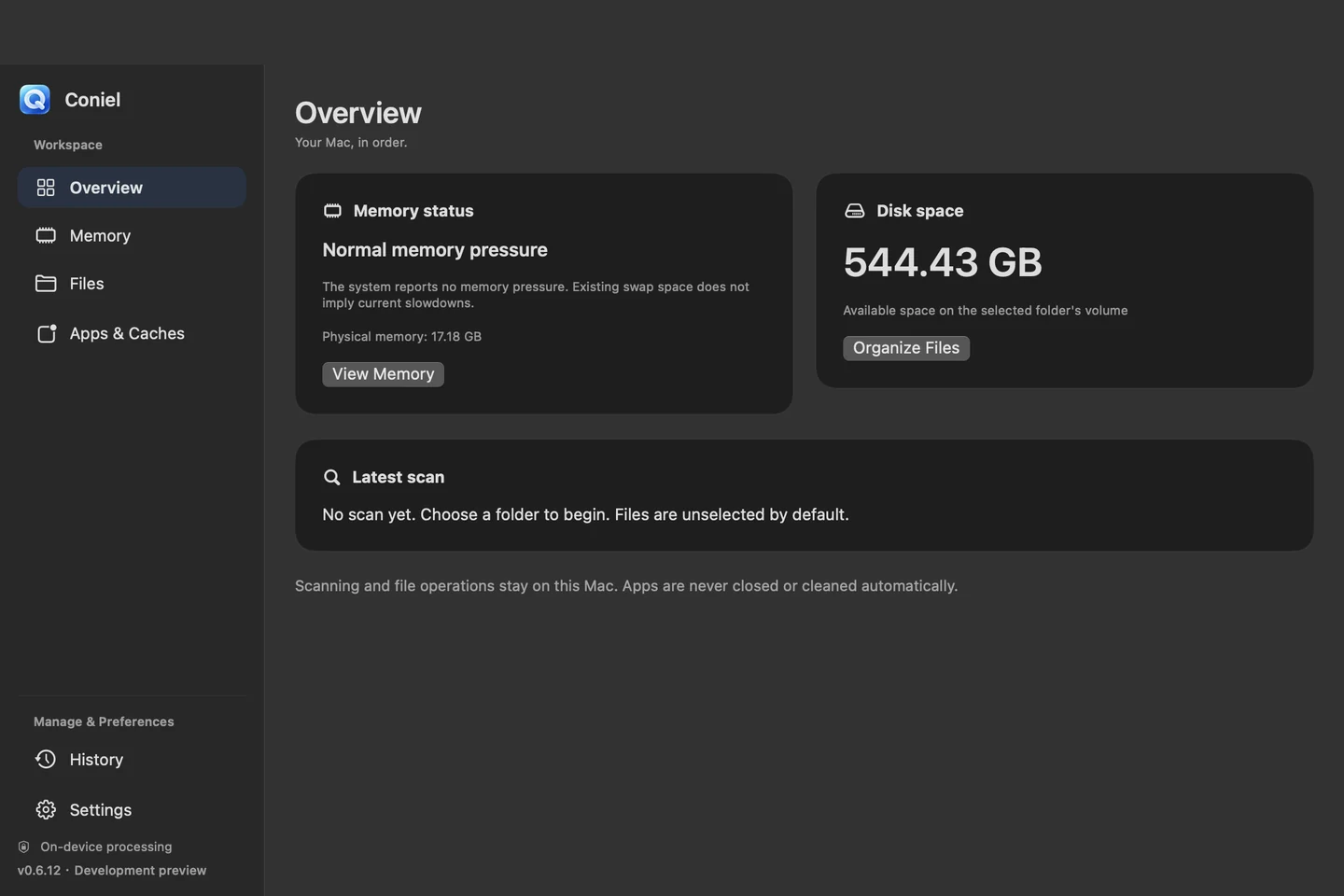
Coniel, Tom Companion and Afu are universal builds for Intel and Apple Silicon. ImageCommand and PDF Manager currently provide Intel builds, which require Rosetta on Apple Silicon.
Are all the apps free?
Free features, trial availability and paid licenses vary by product. Review the relevant product page or the app's license screen for current options before purchasing.
Can I switch the app language?
Yes. The current Mac apps support English and Chinese inside the app. Previously saved language preferences may be retained when upgrading.
How do I update an app?
This site hosts current installers and update manifests. In Afu, open Settings → Software Update to check and download a verified update. For other apps, use their update screen when available, or download the current installer here. Quit a Mac app before replacing it in Applications.